
Search Website

Microsoft Copilot
Microsoft Copilot

Microsoft Copilot
Copilot Chat and Microsoft 365 Copilot
|
|
Note: Enterprise Data Protections are only applied if you are logged in using your Western credentials. You can verify if you are logged into Copilot by looking in the upper right-hand corner of the Copilot page for the green shield icon.  |

Using Copilot Chat
Copilot Chat can be used in a web browser, Teams, or on your mobile device.
Step 1: Sign in
Step 1: Sign into your Microsoft 365 subscription
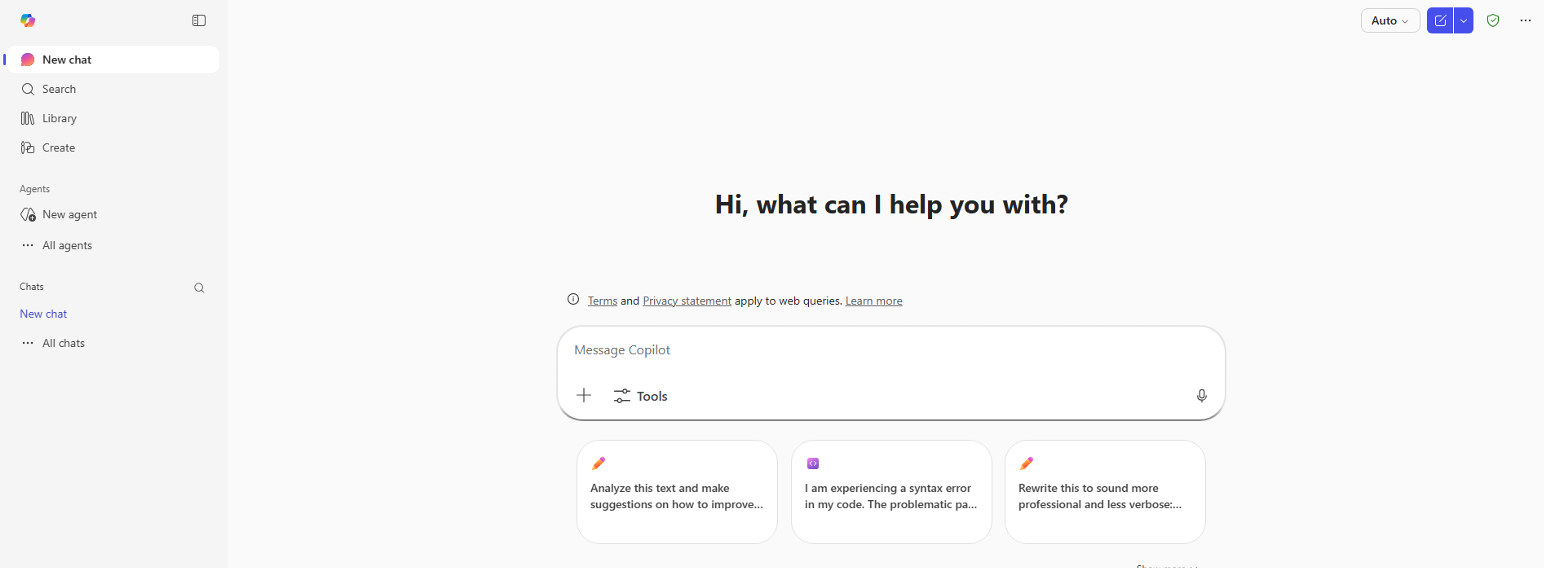
Welcome to Copilot!
Step 2: Enter a prompt
Step 2: Enter your own prompt and select send

Here is a sample prompt:
"Help me draft an [ internal / external] [ email / document] about [ topic]. Base it on [ the uploaded document / website]. This will be shared with [ who] so [ specify type of language]. Keep it [ specify length], use [ specify style e.g.bullet points, highlight key changes, etc]"
A sample follow-up prompt could be:
The tone is too [ formal / academic] please change it to [ new tone]
Step 3: Work with the response
Step 3: After your response is generated there are several things you can do with it (e.g. edit your prompt, copy the response, share it with someone, like or dislike it, or listen to the results aloud)

Adding content to your prompt
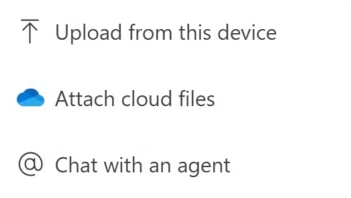
In addition, when entering a prompt, you can press the + button and add content to upload. This helps add context to your prompt.
Enterprise Data Protection
Next to the model selection drop-down and new chat button in the top right corner of the screen, the shield icon indicates enterprise data protection for Copilot Chat. This means everything you do is protected within the walls of Western.

Pages
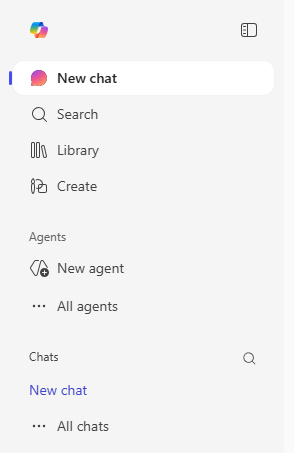
In the left navigation, you’ll find Pages where you can work with generated content from your prompts, edit them, or share them with others.
Learn more about Copilot
That's just the beginning. There's a lot you can do with Copilot. For more ideas you can visit Microsoft's 365 Copilot video tutorials webpage.
How to get the most out of Copilot
- Ask clear, task-oriented questions. Copilot works best when given precise, professional prompts.
- Copilot is optimized for business, document processing, and efficiency.
- Copilot is designed for task completion, not open-ended discussions, so avoid casual chit-chat. Unlike other AIs Copilot Chat is not great at creative or playful exchanges.
Copilot Chat vs. Microsoft 365 Copilot
Think of these as two related but different ways of using AI at Western.
Features at a glance
|
Copilot Chat |
Microsoft 365 Copilot |
|
A general AI chat tool |
An AI assistant built directly into Microsoft apps |
|
Prompts can be entered in a chat window, plus limited access in Outlook and Teams |
It works inside Word, Outlook, Teams, Word, Excel, PowerPoint and OneNote. |
|
Good for drafting, brainstorming, and summarizing |
Best for everyday work tasks using your files and emails |
|
Included with eligible Microsoft 365 accounts |
Requires a Microsoft 365 Copilot license |
Copilot ChatCopilot Chat is a generative AI tool but protected by your Microsoft 365 work account. You can enter a prompt, and it generates a response. With the free version, Copilot Chat is primarily used as a chat tool, with limited access in Outlook and Teams. You can use Copilot Chat to:
Copilot Chat runs in a browser, desktop app, or mobile app. While it can assist in Outlook and Teams, it remains separate from the full in-app experience available in Word, Excel, PowerPoint, and OneNote. When would I use Copilot Chat?Use Copilot Chat when:
|
Microsoft 365 CopilotMicrosoft 365 Copilot is Copilot embedded directly inside the tools you already use every day. Instead of copying text into a chat window, Copilot works where the work happens. Examples:
You don’t need to explain your context as much because Copilot already knows where you are working and which files you have access to. When would I use Microsoft 365 Copilot?Use Microsoft 365 Copilot when:
|
What do they have in common?
Both:
- Are tied to your Western Microsoft 365 account
- Respect existing file and email permissions
- Keep your work data protected
- Help with writing, summarizing, and idea generation