Staff

Writing a Successful Prompt

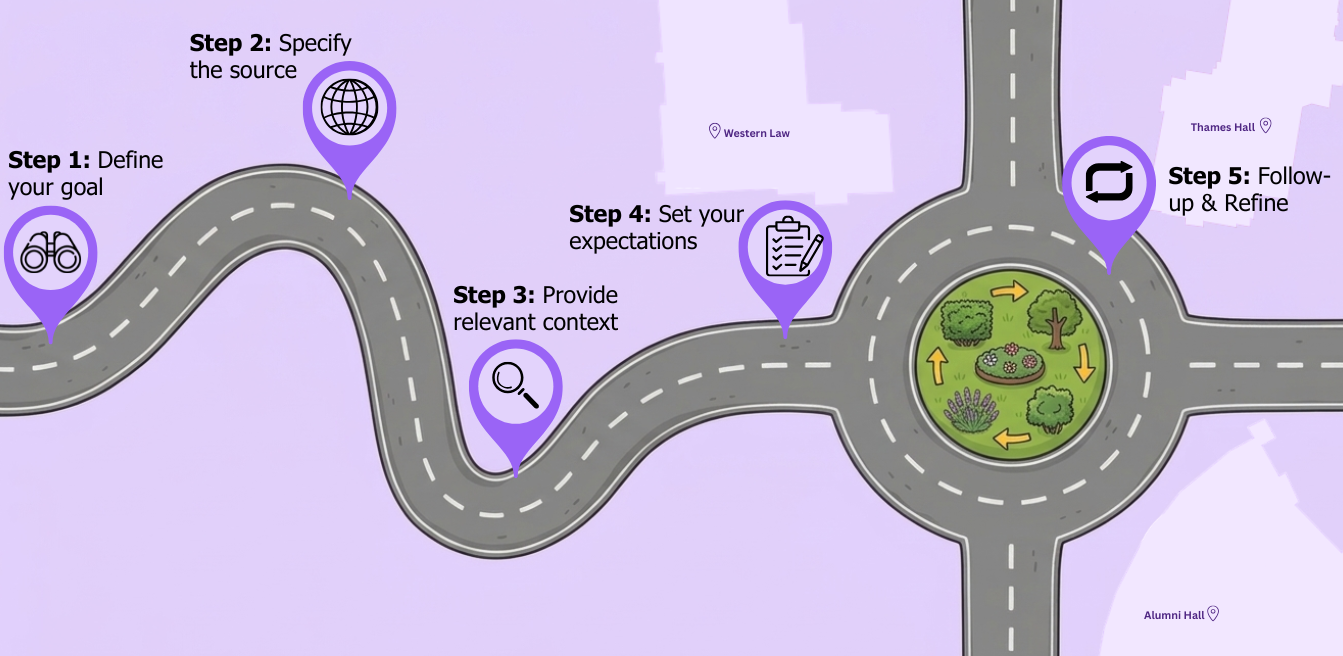
Visual depiction of the writing prompts section. It's a literal road with the steps along the way.  

  • Step 1 - Define your Goal: For example: "Please help me generate 10 ideas for how I can use Copilot to increase my efficiency."
  • Step 2 - Specify the Source: Use an uploaded article with the + sign or use a website URL.
  • Step 3 - Provide Context: For example: "I’m preparing a workshop for staff." Telling the AI "why", helps frame the scope and provide better output. 
  • Step 4 - Set your Expectation: For example: "Give me 5 practical strategies" or "don't use emojis" helps tell the AI what you want.
  • Step 5 - Follow-up prompt: After you get a response you aren't done. This is where you refine the output. For example "Which of your suggestions is easiest to implement?" or "Your tone is too formal, make it 50% more friendly."


Guiding Principle: Use AI Thoughtfully

  • Use AI to support your work. Use it to brainstorm ideas, draft early versions, organize information, summarize notes, or improve clarity.
  • Don’t use AI to replace your own thinking, judgment, or creativity, especially for tasks that require ethical reflection, nuance, or expertise.
  • Cite or acknowledge AI use when it plays a meaningful role in your work (e.g., in documents, presentations, research, or image generation).
  • Always review and fact-check AI output. Don’t assume it’s accurate, unbiased, or appropriate for your context.
  • Never input confidential, personal, or sensitive data into public AI.
  • Please remember that AI is a tool, not a replacement for your voice, your role, or your responsibilities.
  • Note:  Effective July 1, 2025, a Privacy Impact Assessments (PIA) is mandatory for any collection of personal information. 
  • What is Personally Identifiable Information (PII)?

    Some examples are:
    • Government-issued IDs (e.g., driver’s license, passport, Social Insurance Number)
    • Credit card numbers and banking details
    • Login credentials and encryption keys
    • Employee Numbers
    • Patient diagnoses, treatment plans, lab results
    • Student Records
    • MAC Addresses

AI Tool to use based on Data Type

Use Case Example

Copilot

Other AI Tools

Student / staff number

❌ No

❌ No

Budget draft (sensitive / confidential)

✅ Yes

❌ No

Employee Name, role, phone #

✅ Yes

✅ Yes, publicly available on the Western website

Dept planning doc (sensitive)

✅ Yes

❌ No

Workshop feedback

✅ Yes

⚠️ Maybe (not if feedback identifies participants or sensitive issues at Western)

Email to job applicants

✅ Yes

❌ No

Job Applicant resumes

❌ No

❌ No


AI Tool to use based on Task Types

Use Case Example

Copilot

Other AI Tools

Draft email to colleague

✅ Yes

⚠️ Maybe (but leave out name and any sensitive or identifying information)

Summarize / theme survey results

✅ Yes

⚠️ Maybe (only if survey topic and feedback is not sensitive and does not identify individuals)

Create a PPT

✅ Yes

⚠️ Maybe (only if content and topic is publicly available)

Edit or finalize written communication

✅ Yes

❌ No

Generate ideas for a workshop / meeting activity

✅ Yes

⚠️ Maybe (if topic is not sensitive and AI tool is using publicly available information)

Analyze Excel spreadsheet

✅ Yes

❌ No

Summarize meeting minutes

✅ Yes

❌ No

Transcribe a meeting

✅ Yes

⚠️ Maybe (if the meeting can be completely held in a public space then yes.)

Summarize an article

✅ Yes

⚠️ Maybe (only if data is publicly available)

Notes:


AI Tools for Hiring

 Artificial intelligence (AI) has become an important tool in many workplaces, and we encourage Western teams to thoughtfully explore how it can support creativity, productivity, and innovation in their work.

At the same time, we believe that hiring should remain a human-centered process. We do not use AI tools to screen, rank, or assess job applicants. Every application is reviewed by people, and all hiring decisions are made by our team.

Candidates are welcome to use AI tools when preparing their application materials, provided the information submitted is accurate, and the experience outlined is authentic. 
  • Factual Accuracy: All details regarding employment history, education, and skills must be entirely verifiable.
  • Authentic Representation: The materials must genuinely reflect the applicants personal professional background and capabilities.
Our goal is to embrace the benefits of emerging technology while maintaining fairness, accountability, and a respectful candidate experience.

This information is provide by Western Human Resources.