
Search Website

Google Gemini
Google Gemini

Google Gemini
Google Gemini is now available to eligible Western faculty and staff as an institutional pilot. This page explains what Gemini is, how to access it, what it can be used for, and how to use it safely and responsibly.
What is Gemini?
- Gemini is Google's generative AI platform, built on Google's large language models. You interact with Gemini through a chat interface: ask questions, give prompts, paste in text, or upload files. It produces written responses, summaries, drafts, code, images, and more.
- Eligible Western faculty and staff can sign in to Gemini Enterprise using their Western credentials. Because you're signed in through Western's agreement with Google, your prompts and files get stronger data-protection terms than the consumer version, including protections against being used to train Google's models.
Request a Gemini License
How to access Gemini
Once you have been approved for a Gemini license:
- Visit gemini.uwo.ca
- Sign in using your @uwo.ca account.
Make sure you're signed in with your Western credentials. Data-protection terms only apply when you are signed in with your Western account.
Gemini vs. Gemini Notebook
Western's Google agreement gives you access to two tools. Choose the one that fits your task.
- Gemini is best for open-ended, exploratory work where you don't need it to reference specific documents: brainstorming ideas, drafting something from scratch, summarizing a topic you already understand loosely, learning about something new, or asking general knowledge questions. It pulls from the public web, so it's answering from broad general knowledge rather than anything you've handed it. Using Gemini
- Gemini Notebook is best for focused work tied to a specific set of materials you provide: you upload documents, links, or notes, and then ask questions or generate summaries that stay grounded in only that material, with citations back to your sources. It won't wander off to pull in outside information the way the regular Gemini app does. Using Gemini Notebook
The practical distinction is scope of knowledge and traceability. Gemini draws on everything Google's model knows; Gemini Notebook draws only on what you fed it and can point back to exactly where an answer came from. So if you wanted a real-world example: use Gemini to brainstorm essay topics, use Gemini Notebook once you've picked one and want to ask questions about the five resources you have uploaded to your notebook.
- Training & Resources from Google
- FAQ
- Need more help? Contact the WTS Helpdesk or the AIRC.
Using Gemini
Confidential and sensitive institutional data may only be used within Western-approved AI tools. Personal information, such as names, identifiers, student records, employee data, health information, or any information about an identifiable individual, should be treated with extra caution. More information can be found on the Using AI page.
Step 1: Sign in
- Sign in to your Gemini Enterprise account by going to gemini.uwo.ca.
- Authenticate with MFA.
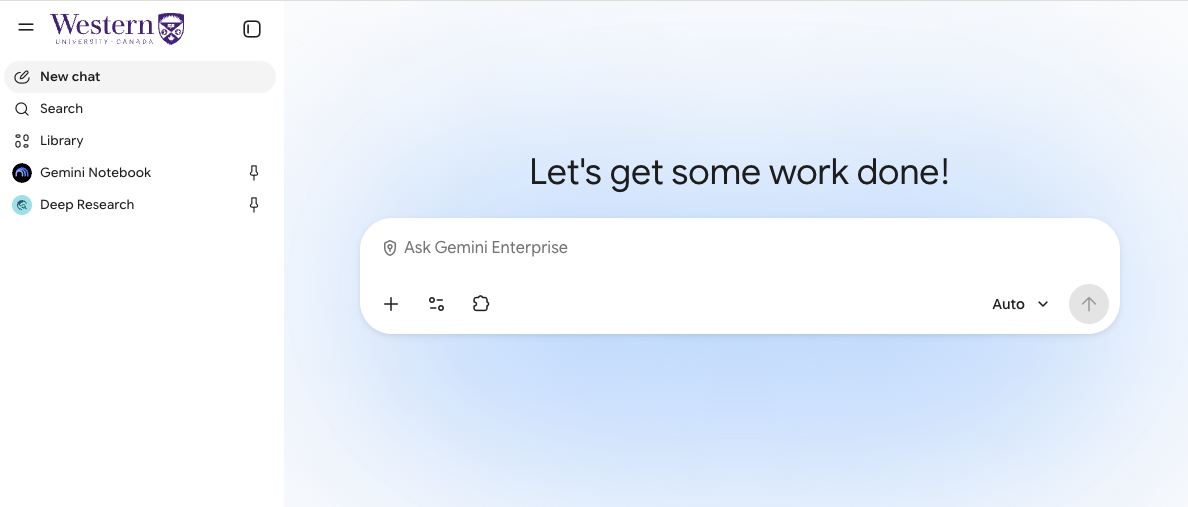
- This will take you to the Gemini page.
Step 2: Enter a prompt
Enter your prompt in the context window, then select the up arrow to submit it.
Adding content to your prompt
You can add more context to your prompt by selecting the + button. This allows you to upload files and other content for Gemini to work with.
You can also customize how Gemini responds using the options available in the prompt bar:
Tools: Select the Tools icon to access additional Gemini features:
- Search the web: Let Gemini pull in current information from the public web to inform its answer, rather than relying only on what it already knows. Useful for questions where recency matters, like current events, updated statistics, or anything that may have changed since the model was last trained.
- Canvas: An interactive workspace for building and refining something as you go, rather than getting a single finished response. Use it to draft and revise a piece of writing, or to turn an idea into a working prototype like a quiz, a simple app, or an interactive diagram, adjusting it through follow-up prompts as you go.
- Deep Research: Ask Gemini to investigate a topic in depth. It plans out a research approach, browses many sources on its own, and returns a structured, multi-page report with citations. This is a good option for background research on a new topic, market or competitive analysis, or exploring a complex question that would otherwise take hours of manual searching.
- Create images: Generate images from a text description. Useful for illustrations, mockups, or visual concepts to accompany your work.


Model selection: Select the drop-down arrow to choose the Gemini model you want to use.
- Gemini 3.8 Flash is the faster, lighter-weight model. It's a good default for everyday tasks: drafting emails, summarizing documents, answering questions, and other quick turnaround work where you don't need deep, multi-step reasoning.
- Gemini 3.1 Pro is the more powerful model, built for tasks that need deeper reasoning: working through a complex problem, synthesizing information from multiple sources, or generating something more involved like a detailed report or a complex spreadsheet formula. It typically takes a bit longer to respond than Flash.
As a rule of thumb, start with Flash for routine work and switch to Pro when a task feels like it needs more careful thinking or the Flash response isn't hitting the mark.
Using Gemini Notebook
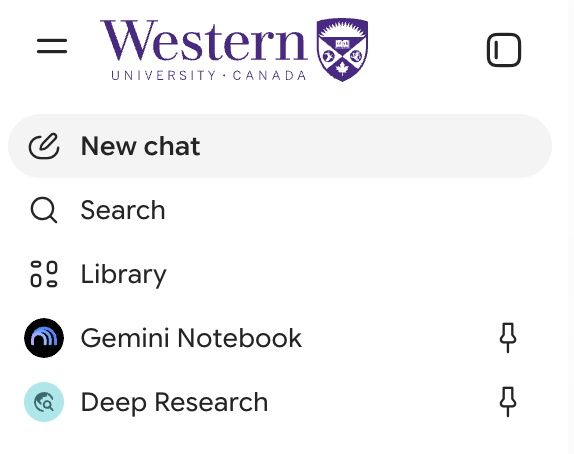
Step 1: Select Gemini Notebook using the panel on the left side
Step 2: Create a new notebook
- Select the button that says "+ Create new."

Step 3: Add your sources
- Add the information you want Gemini Notebook to work with by uploading or selecting your sources.
- Your sources provide the context for the notebook and help ground Gemini's responses in the material you have provided.

Step 4: Get familiar with the workspace
Once your sources have been added, the notebook workspace is divided into three main areas: Sources, Chat, and Studio.- Sources contains the material you have added to the notebook.
- Chat allows you to ask questions about your sources.
- Studio provides tools for turning your source material into other formats and learning resources.

Once you upload your documents, you can use the Studio menu to transform that information into:
- Audio Overview: Turn your sources into an AI-generated audio discussion (podcast style) that summarizes key ideas and makes connections across your materials. You can join the conversation to ask the AI to focus on a specific section or explain a concept more simply.
- Video Overview: Generate a narrated visual overview of your sources, combining explanations with visuals to help make complex concepts, processes, or information easier to understand.
- Slide Deck: Draft a full set of presentation slides based on the information in your notebook, including the logical flow and key talking points.
- Flashcards: Generate a set of digital flashcards to help you master terms and ideas found within your project files.
- Quizzes: Create practice tests to check your understanding. Every answer includes a citation that points to the page in your document where the information is located.
- Mind Map: View a visual map of the main topics and relationships within your sources, helping you see patterns across multiple sources.
- Reports: Generate structured written content such as summaries, study guides, or briefing documents based on your sources.
- Infographic: Turn key information from your notebook into a visual summary of important concepts, findings, or takeaways.
- AI Tutoring: Ask the AI to tutor you on the material. It will ask you questions to help you build a deeper understanding of your own sources.
- Import Web & Video: Paste a link to a YouTube lecture or a news article and Gemini Notebook will "read" it and add it to your private collection.
Step 5: Ask questions about your sources
- Enter a question or instruction in the Chat area to begin working with your sources.
- Gemini Notebook can summarize information, identify themes, compare sources, explain concepts, and answer questions based on the material in your notebook. Responses may also include citations that show where the information came from.

Step 6: Create materials in Studio
Select an option in the Studio panel to create new materials based on your sources. Depending on the features available to your account, Studio can be used to create items such as audio overviews, videos, quizzes, flashcards, mind maps, reports, and presentations.
Optional: Share a notebook
- You can also share a notebook with others when you want to collaborate or provide access to the information you have collected.
- Select Share, located in the top right corner next to Settings, choose the appropriate access settings, and add the people you want to give access to.
Example use cases
- Policy and procedure audits: Upload the current set of departmental SOPs, forms, and policy documents into a notebook. Ask: "Where do these procedures reference outdated systems or contacts?" or "Which policies overlap or contradict each other?" to surface things that need updating before a review cycle.
- Meeting and project continuity: Upload a project's meeting notes, decision logs, and planning documents as they accumulate. Ask a new team member's questions directly against the notebook, or ask "What decisions have we already made about [topic]?" so institutional knowledge doesn't rely on one person's memory.
- Grant and literature background work: Upload a set of papers relevant to a grant proposal or new research direction. Ask Gemini Notebook to identify gaps in the existing literature or summarize how a proposed approach compares to what's already been published, with citations back to the source papers.
- Course material consistency: Upload a syllabus, lecture slides, and assigned readings for one course. Ask "Where does the syllabus promise something the readings don't actually cover?" or "Are there terms I use in lecture that aren't defined anywhere in the readings?" to catch mismatches before students do.
Training & Resources from Google
- What is Gemini and How It Works
- Gemini Enterprise app frequently asked questions
- Gemini Enterprise app learning hub
- Introduction to Artificial Intelligence (AI) | Google AI Essentials (Video)
- Use AI Tools to Boost Productivity | Google AI Essentials (Video)
- Discover the Art of Prompting | Google AI Essentials (Video)
- Use AI Responsibly | Google AI Essentials (Video)